
带你搭建MCP走进Manus的大门
近几个月,聊AI Agent必定绕不开“MCP”这三个字母。说到底,它就像一个专为AI agent打造的服务器工具箱——把各种工具打包好,让AI按需调用。如果你也用过Claude这类工具,可能会隐&隐觉得:要是能在VS Code里自定义一些调用接口,组合出属于自己的“Manus”,岂不是更有意思?
这篇内容,就把这事彻底拆开、说清楚。从零开始,带你走完一遍简化版Manus服务端的搭建流程。不需要天花乱坠的架构,只要跟着步骤来,你也能拥有属于自己的AI Agent工具服务器。
话不多说,直接开始。
1. 下载工具

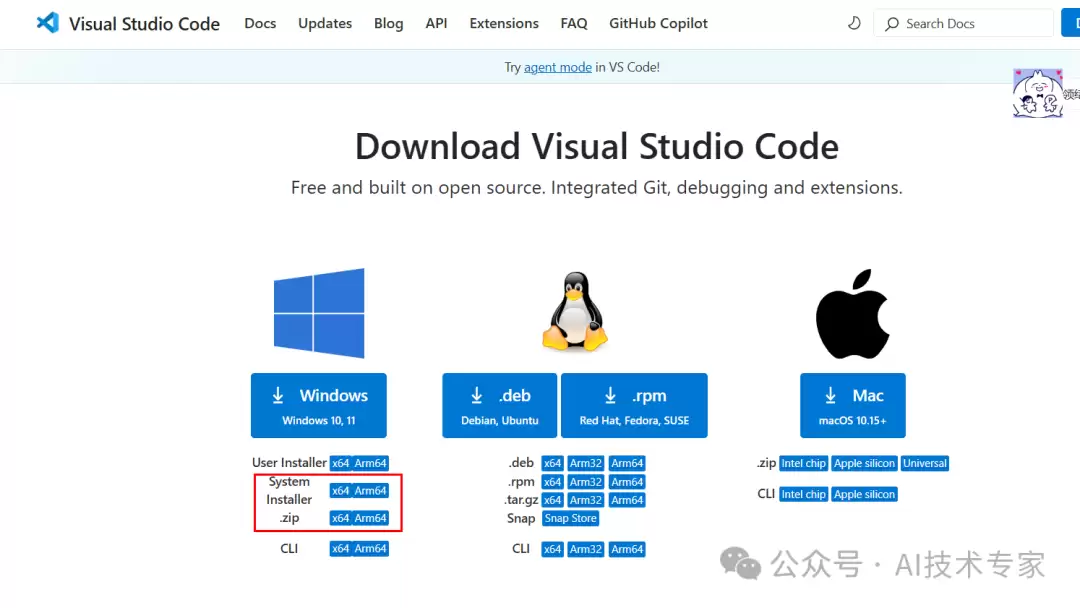
首先,你需要一个编辑器——VS Code。下载地址在这里:https://code.visualstudio.com/download。如果是Windows系统,直接选择对应Windows版本就可以。
然后,还需要Python运行环境。推荐下载Anaconda,官方链接在此:https://www.anaconda.com/download。Anaconda省去很多手动配置的麻烦,对新手尤其友好。
把这两样安装好,才算拿到入场券。
2. VSCode安装cline
打开VS Code,选择左侧的扩展图标。
如果遇到提示说操作系统版本不支持VSCode的情况,通常需要安装VC++运行环境依赖。跟着提示操作就好。
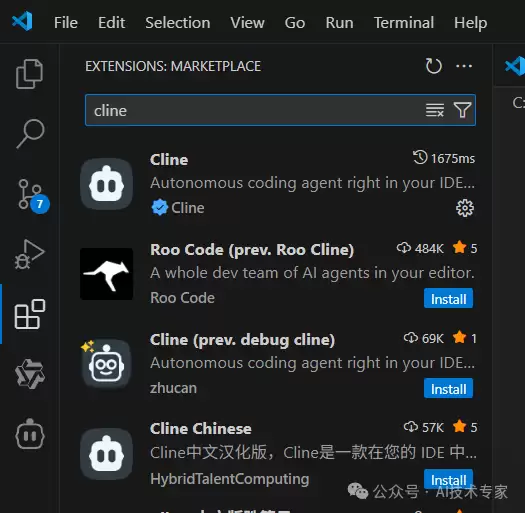
在Extensions搜索栏输入“cline”,找到对应的扩展后,直接安装。
3. VSCode配置cline
安装完成后,左侧菜单栏里会出现cline的专用图标。
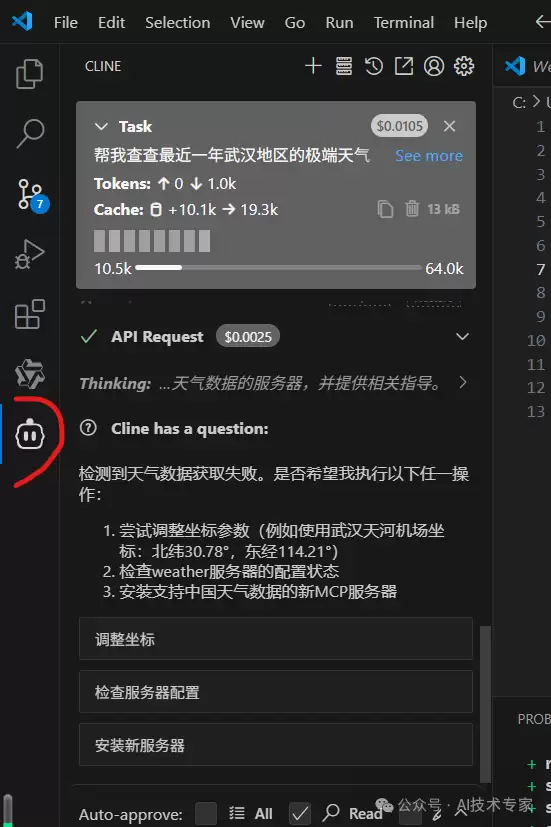
如果你之前安装过,这里应该直接显示相关界面。新用户则点击“Get Started for Free”进行登录授权。
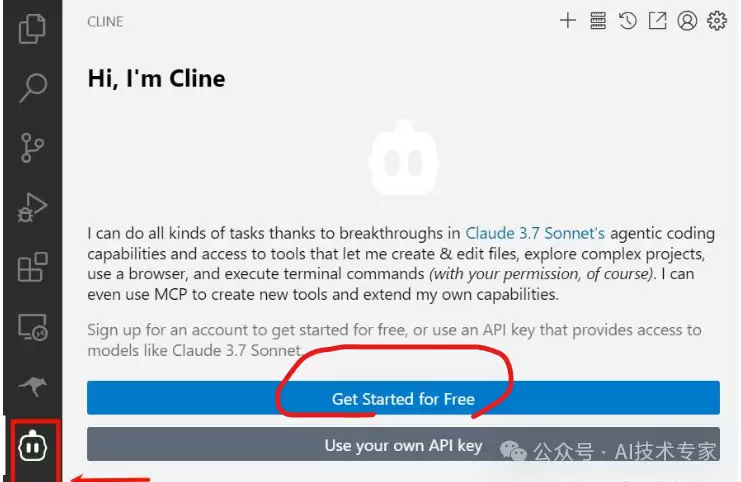
系统会要求账号登录。
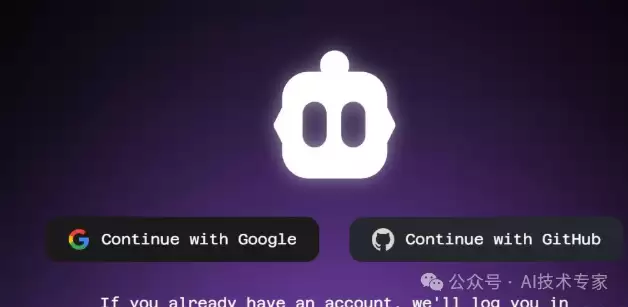
这里建议使用GitHub账号。点击后,输入GitHub邮箱和密码。没有账号?可以就地注册一个,流程很快。
登录后,GitHub会给你注册邮箱发送一封校验邮件,找到并复制校验码。
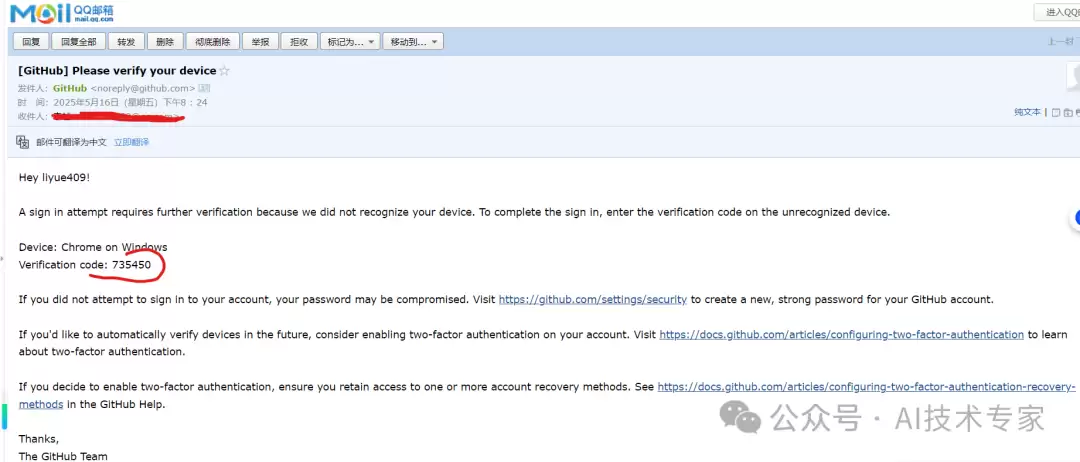
填入校验码完成认证,并授权。
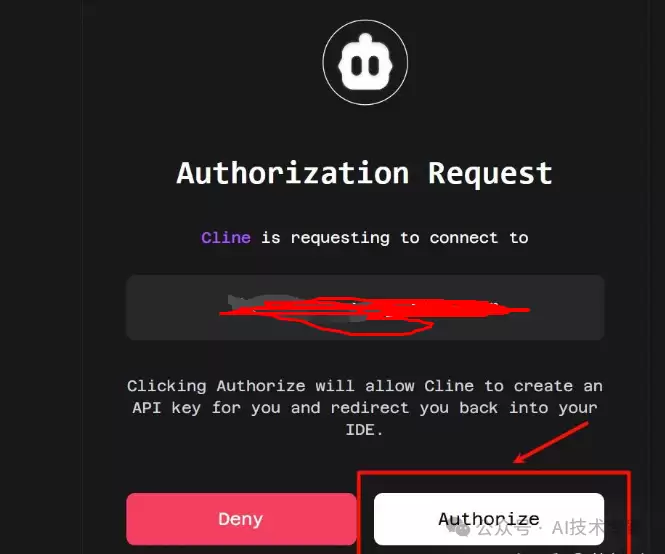
授权成功后,你会看到Cline中已经支持“MCP Servers”的配置选项。
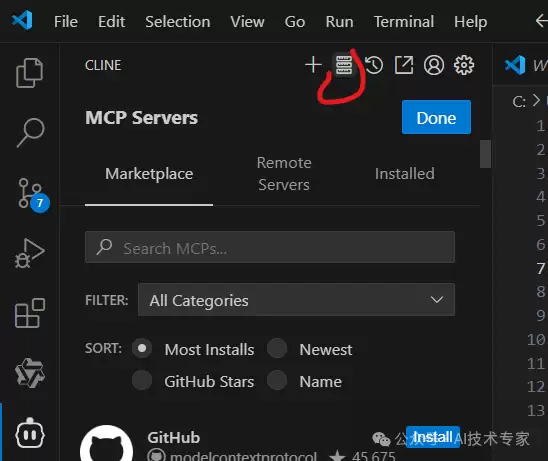
接下来,点击右上角的设置按钮。
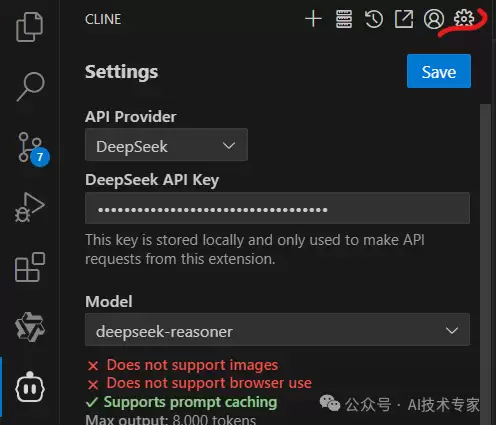
在“API Provider”中选择模型服务商。这里我们选择DeepSeek。
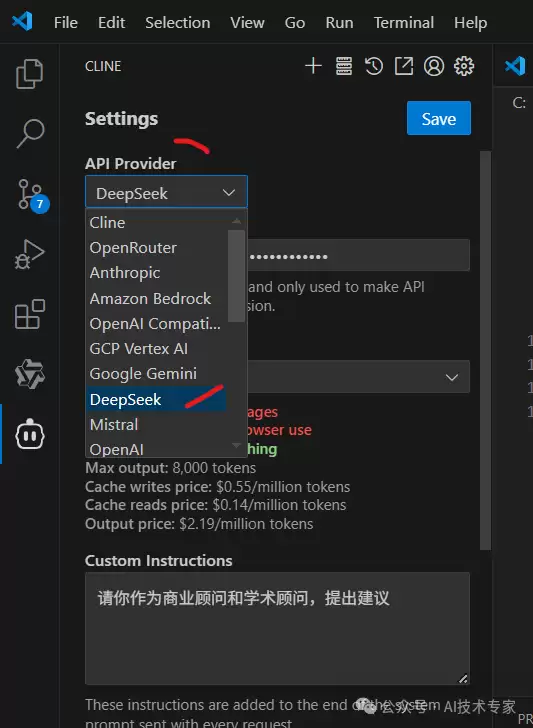
点击选择后,需要填入API Key。这个Key从哪里来?打开DeepSeek开放平台:https://platform.deepseek.com/usage。
进入后创建一个API Key并复制。
将Key填入相应位置。模型建议选择“deepseek-ressoner”,推理能力更强。
值得留意的是:
配置完成后,根据自己的需求填写角色指令,然后保存。
4. 搭建MCP服务端
打开电脑的CMD窗口,输入以下命令来安装 uv(一个Python包和环境管理工具):
powershell -ExecutionPolicy ByPass -c "irm https://astral.sh/uv/install.ps1 | iex"安装完成后,
一定记得重启VS Code
重启后,用VS Code打开一个空白文件夹。在顶部菜单栏中找到“终端”(Terminal)并打开。
在终端中输入以下命令,初始化一个名为 weather 的项目:
uv init weather然后进入weather目录:
cd weather接下来,创建虚拟环境:
uv venv最后,安装MCP依赖包:
uv add "mcp[cli]" httpx这一步需要一点时间。
5. 启动MCP服务
先用Python安装另一个依赖:
pip install fastmcp然后回到VS Code,在 weather 项目下新建一个Python文件,命名为 selectInfo.py。
将以下代码粘贴进去。这是一个能查询美国天气的MCP服务端脚本:
from typing import Any
import httpx
from mcp.server.fastmcp import FastMCP

# Initialize FastMCP server
mcp = FastMCP("weather")

# Constants
NWS_API_BASE = "https://api.weather.gov"
USER_AGENT = "weather-app/1.0"

async def make_nws_request(url: str) -> dict[str, Any] | None:
    """Make a request to the NWS API with proper error handling."""
    headers = {
        "User-Agent": USER_AGENT,
        "Accept": "application/geo+json"
    }
    async with httpx.AsyncClient() as client:
        try:
            response = await client.get(url, headers=headers, timeout=30.0)
            response.raise_for_status()
            return response.json()
        except Exception:
            return None

def format_alert(feature: dict) -> str:
    """Format an alert feature into a readable string."""
    props = feature["properties"]
    return f"""
Event: {props.get('event', 'Unknown')}
Area: {props.get('areaDesc', 'Unknown')}
Severity: {props.get('severity', 'Unknown')}
Description: {props.get('description', 'No description a vailable')}
Instructions: {props.get('instruction', 'No specific instructions provided')}
"""

@mcp.tool()
async def get_alerts(state: str) -> str:
    """Get weather alerts for a US state.

    Args:
        state: Two-letter US state code (e.g. CA, NY)
    """
    url = f"{NWS_API_BASE}/alerts/active/area/{state}"
    data = await make_nws_request(url)

    if not data or "features" not in data:
        return "Unable to fetch alerts or no alerts found."

    if not data["features"]:
        return "No active alerts for this state."

    alerts = [format_alert(feature) for feature in data["features"]]
    return "n---n".join(alerts)

@mcp.tool()
async def get_forecast(latitude: float, longitude: float) -> str:
    """Get weather forecast for a location.

    Args:
        latitude: Latitude of the location
        longitude: Longitude of the location
    """
    # First get the forecast grid endpoint
    points_url = f"{NWS_API_BASE}/points/{latitude},{longitude}"
    points_data = await make_nws_request(points_url)

    if not points_data:
        return "Unable to fetch forecast data for this location."

    # Get the forecast URL from the points response
    forecast_url = points_data["properties"]["forecast"]
    forecast_data = await make_nws_request(forecast_url)

    if not forecast_data:
        return "Unable to fetch detailed forecast."

    # Format the periods into a readable forecast
    periods = forecast_data["properties"]["periods"]
    forecasts = []
    for period in periods[:5]:  # Only show next 5 periods
        forecast = f"""
{period['name']}:
Temperature: {period['temperature']}°{period['temperatureUnit']}
Wind: {period['windSpeed']} {period['windDirection']}
Forecast: {period['detailedForecast']}
"""
        forecasts.append(forecast)

    return "n---n".join(forecasts)

if __name__ == "__main__":
    # Initialize and run the server
    mcp.run(transport='stdio')
关键一行是 mcp.run(transport='stdio')。这段代码会启动一个标准的MCP服务器。
保存文件后,在VS Code终端里,确保路径在 weather 项目下,然后执行:
uv run selectInfo.py如果运行成功,没有任何报错信息,说明MCP服务端已经顺利启动。
6. 在cline中配置MCP Server
回到VS Code左侧,打开cline面板,点击“MCP Server”进行配置。
选择“配置MCP Servers”。在弹出的配置文件中,根据你的真实文件目录修改以下内容。这是我配置的路径(你的路径请自行替换):
{
    "mcpServers": {
        "weather": {
            "command": "uv",
            "args": [
                "--directory",
                "E:代码前端分支Gitconsultweather",
                "run",
                "selectInfo.py"
            ]
        }
    }
}
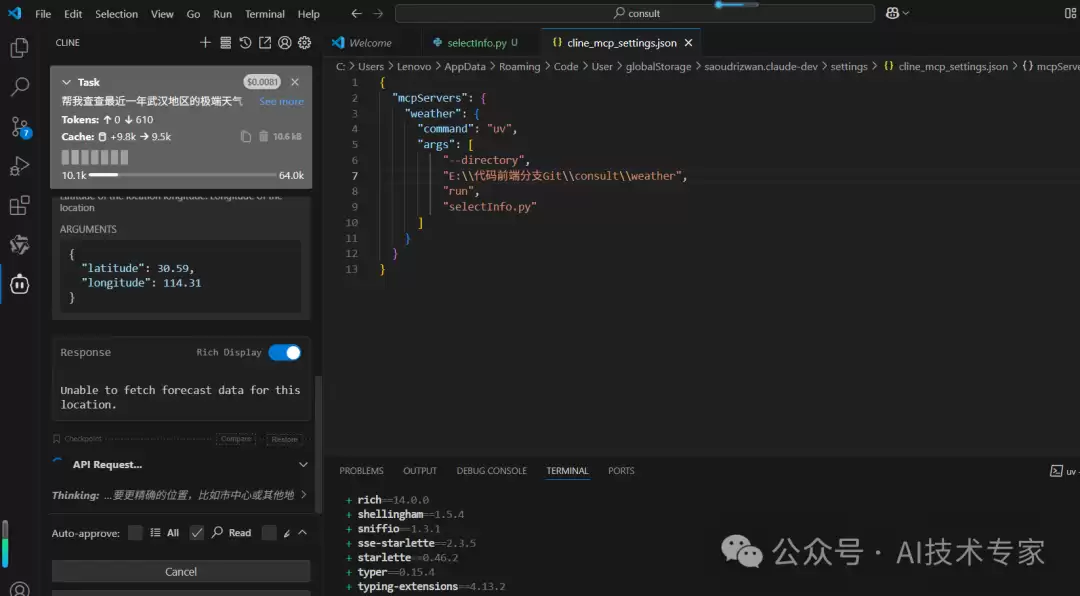
保存配置文件后,如果在MCP Server列表中,对应的服务器显示为绿色,就代表连接成功了。
7. 使用MCP
到这一步,MCP服务端和客户端都搭建完毕。你可以开始尝试派发任务了。
在VS Code左侧打开cline,直接输入你想要的天气查询任务。因为当前使用的是国际天气函数,所以需要调用对应的API接口。它会自动通过我们搭建的MCP服务去查询并调用。
如果遇到报错,比如提示“无法获取数据”,cline会引导你修改代码或补充API Key。按照提示一步步走,它还会指引你去查看对应的接口文档。
说白了,这个流程就是“人类给出指令 → AI agent理解 → 调用MCP服务 → 执行并返回结果”。整个过程自动化、半自动化的程度非常高。
具体能实现哪些功能,还取决于你写进 selectInfo.py 里的工具函数。这次的例子是天气查询,后面你可以扩展成文件操作、数据库查询、甚至API网关调用……潜力巨大。
本文的目标,就是帮你搭建属于自己的Manus雏形。剩下的惊喜,留给你自己去挖掘。
